

Automate RevenueCat workflows across your apps with FastHook

  • Oct 30, 2026 7:29 PM UTC
  • 2 replies
  • 16 views

Forum|alt.badge.img

Hi everyone,

I’m Andrew, the developer behind FastHook, a workflow automation platform. We’ve just added a RevenueCat integration to help connect subscription events with the other tools you use.

Build workflows across your apps
Use RevenueCat events—such as purchases, renewals, cancellations, and expirations—to start a workflow, filter the events you care about, and map their data into actions from other supported FastHook apps. You can build your own workflows in the visual editor; you’re not limited to the ready-made templates.

The integration uses OAuth, so you can select the RevenueCat projects and permissions you grant without copying a secret API key into FastHook. It also includes RevenueCat actions for working with customer records and reading subscription and purchase information.

Two ready-made templates to get started

  • Google Sheets: keep a log of subscription events. The first event automatically creates the spreadsheet and its columns; later events add rows to the same file. No manual spreadsheet setup is needed.
  • Telegram: send subscription event notifications to your chosen chat or channel.

These are starting points, rather than the only destinations. You can add steps or build a different workflow using the apps and actions available in FastHook.

We’ve tested both templates end to end using RevenueCat’s official TEST events. We also verified that the Google Sheets workflow resumes delivery after disconnecting and reconnecting an account.

You can explore the integration, available actions, and templates here:
https://www.fasthook.io/apps/revenuecat/integrations

Thanks to Wes and the RevenueCat support team for helping us get OAuth set up.

Which apps would you like to connect to RevenueCat, and what would you want to automate? I’d love to hear your use cases and feedback.

Andrew
FastHook
2 replies

  • New Member
  • Nov 1, 2026 3:57 AM UTC

One thing I'm curious about is how FastHook handles duplicate webhook events.

The Google Sheets template looks useful, but RevenueCat can retry the same event if delivery fails. Would that create another row, or does FastHook check the event ID before running the workflow again?

I'm also wondering what happens if a workflow has three steps and the second one fails. Can you retry just the failed part without repeating the actions that already succeeded?

That would make quite a difference for workflows doing more than sending notifications.


Forum|alt.badge.img

Hi Mrlaura, thanks for both questions!

1. Event IDs and duplicate events

RevenueCat includes a unique event.id in each webhook event and preserves it across retries. FastHook requires this field: an event without it will not trigger the workflow or add a spreadsheet row. FastHook already had built-in protection against duplicate webhook deliveries for the same trigger.

We’ve also added a RevenueCat → Google Sheets template with an Only new items step. This adds protection when you manually rerun the entire workflow with the same event—for example, by selecting a previous run in Run History.

Only new items checks the Event ID before the Google Sheets action. FastHook automatically confirms that ID in the step’s internal history after the workflow completes successfully; no separate confirmation step is needed on the canvas. Subsequent full reruns skip events already confirmed as successfully processed. New events with different IDs are processed normally.

2. Continuing after a failed step

Yes—in a regular sequential workflow, you can resume from the failed step without repeating earlier successful actions.

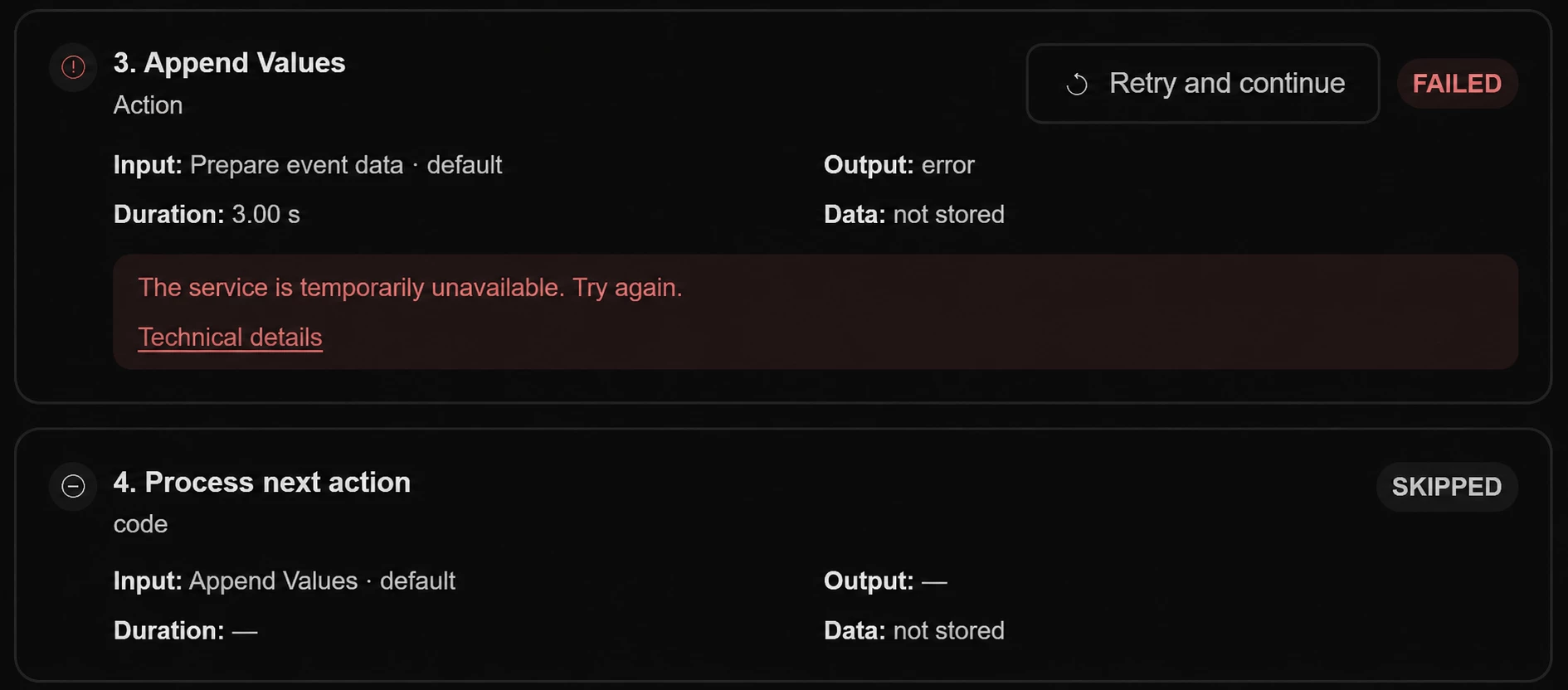
For example, if step 1 succeeds and step 2 fails, step 3 does not execute. Open the failed run in Run History and click Retry and continue beside step 2. FastHook reuses the saved result of step 1, retries step 2, and, if it succeeds, continues to step 3. Step 1 is not executed again.

This is different from Run again, which starts the entire workflow again.

One distinction for the new template: workflows containing Only new items require a full rerun instead of a partial retry, so the Event ID check runs again. An event whose processing failed can be retried; an already confirmed event is skipped.

Illustrative example of Retry and continue in Run History: