
Question

Google Play rejects app (Broken Functionality): "The item that you were attempting to purchase could not be found", works on my OPPO device and in testing

  • Nov 19, 2026 5:34 AM UTC
  • 1 reply
  • 6 views

Forum|alt.badge.img

Hi everyone,

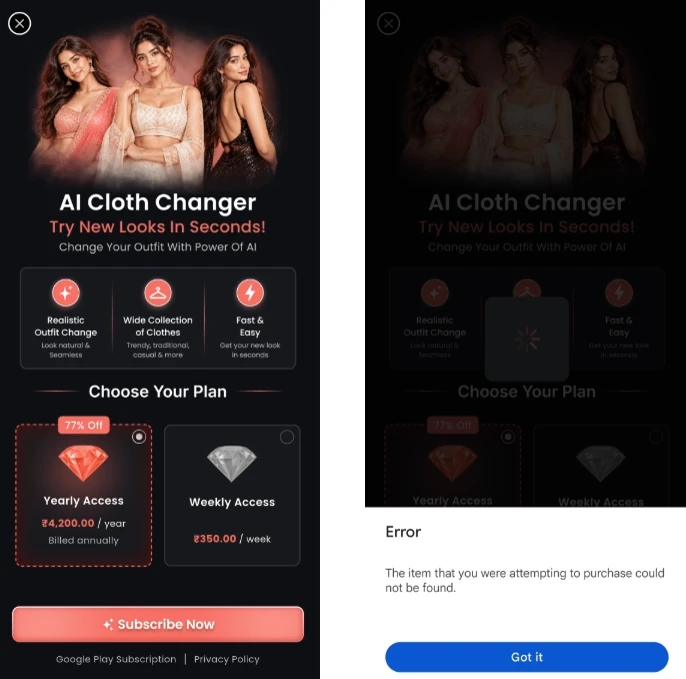
My Flutter app keeps getting rejected by Google Play under the Broken Functionality policy because of this error on the reviewer's device: "The item that you were attempting to purchase could not be found." The reviewer's screenshot shows our paywall with a loading spinner, then Google's purchase sheet with that error (screenshots attached).

What Google's emails said:
1. First rejection (when I sent the app to production after completing 14 days of closed testing): "Violation of Broken Functionality policy... Unresponsive UI elements, such as buttons or icons", with the reviewer's screenshot attached.
2. After I appealed with a screen recording: the appeal was denied. The reply said the app "still violates" the policy, and that the "Subscribe Now" button is "not responsive or leads to an error page."
Neither email says which device, account or country the reviewer used.

My setup:
- Flutter app with RevenueCat, two subscriptions: yearly and weekly
- Both subscriptions and their base plans are Active in Play Console
- The yearly base plan is available in all countries, and the Production track is available in all countries too
- Purchases work in internal testing and in closed testing
- I also tested on my OPPO device and the purchase works
- I attached a video of the working purchase flow with my appeal, but it was still rejected

Questions:
1. Has anyone had the same error only on reviewers' devices while it works for testers? What fixed it?
2. Reviewers seem to use accounts that aren't license testers. Is there any setup or configuration that makes the purchase work for them?
3. The error dialog comes from Google's purchase sheet before my code can handle the failure. Is there any way to prevent it, or to avoid the "unresponsive" finding?
4. Has anyone passed review by resubmitting a new version (for example with a free path, or a different paywall flow) instead of appealing again?

Any help is appreciated, and I can share more details if needed. Thanks!
 

1 reply

This error comes from Google Play’s own purchase sheet, which means the app asked Play to buy a product (or offer) that Play won’t sell to that account in that country. It works for you because license testers and your own region are the “happy path”; the reviewer usually isn’t on either. Things to check, in the order I’d check them:

  1. Every base plan and offer, not just the yearly one. You mentioned the yearly base plan is available in all countries. Check the weekly base plan too, and any offers (free trial, intro price) on both. Each base plan and offer has its own region list and its own prices. If the reviewer is in a region where the weekly plan (or the trial offer RevenueCat picks by default) has no price or isn’t available, you get exactly this error. In Play Console > Monetize > Subscriptions, open each base plan and offer and confirm it is Active, available in every country your app ships to, and has a price for each one.
  2. Offer eligibility. If an offer uses “new customer acquisition” or developer-determined eligibility, make sure your paywall still works for an account that only qualifies for the base plan. RevenueCat picks the best eligible offer for you, but a custom paywall that hardcodes an offer ID or token can send Play something the reviewer can’t buy.
  3. Only show what the store actually returned. Build the paywall from Purchases.getOfferings() and render only packages whose storeProduct came back. If offerings.current is null or a package is missing, show a short “Subscriptions aren’t available right now, please try again” message with a retry button instead of a button that fails. Also put a timeout on the loading spinner. The “unresponsive button” wording in the rejection usually means a reviewer saw a spinner that never ended or a button that did nothing, so a clear error state goes a long way.
  4. Reproduce it as a reviewer would. Use a Google account that is not on your license-tester list, add it to the closed testing track, install from the Play Store link (not sideloaded), and try to buy. That will be a real charge, so refund it in the Order management page afterwards. If you can, also try an account whose Play country is different from yours. This is the one test that matches the reviewer’s setup; internal testing with license testers won’t show the problem.
  5. Make sure Play and RevenueCat agree. In RevenueCat, every product should be the subscriptionId:basePlanId form for a base plan that is active in Play. If you renamed, deactivated or recreated a base plan, an offering can still point at the old one. RevenueCat > Product catalog shows a warning on products Play can’t find.
  6. Resubmit rather than appeal again. Once you’ve fixed the regions or offers (and added the error state), send a new build with a short note in “App access” or the release notes saying what was fixed and how to reach the paywall. A new version with a real fix tends to pass. Repeating the appeal with the same build usually doesn’t, because the reviewer’s account still can’t buy.

If none of that turns it up, post (with IDs redacted) your product IDs as they appear in RevenueCat, the base plan IDs and offers in Play Console, and the regions set on each. A mismatch usually shows up once they’re side by side.