
Question

Unable to Save Apple API Key or Upload p8 File in RevenueCat

  • January 10, 2025
  • 8 replies
  • 220 views

Forum|alt.badge.img+1

Hi everyone,


I’m trying to set up my app in RevenueCat and encountering an issue when adding the App Store Connect API Key.


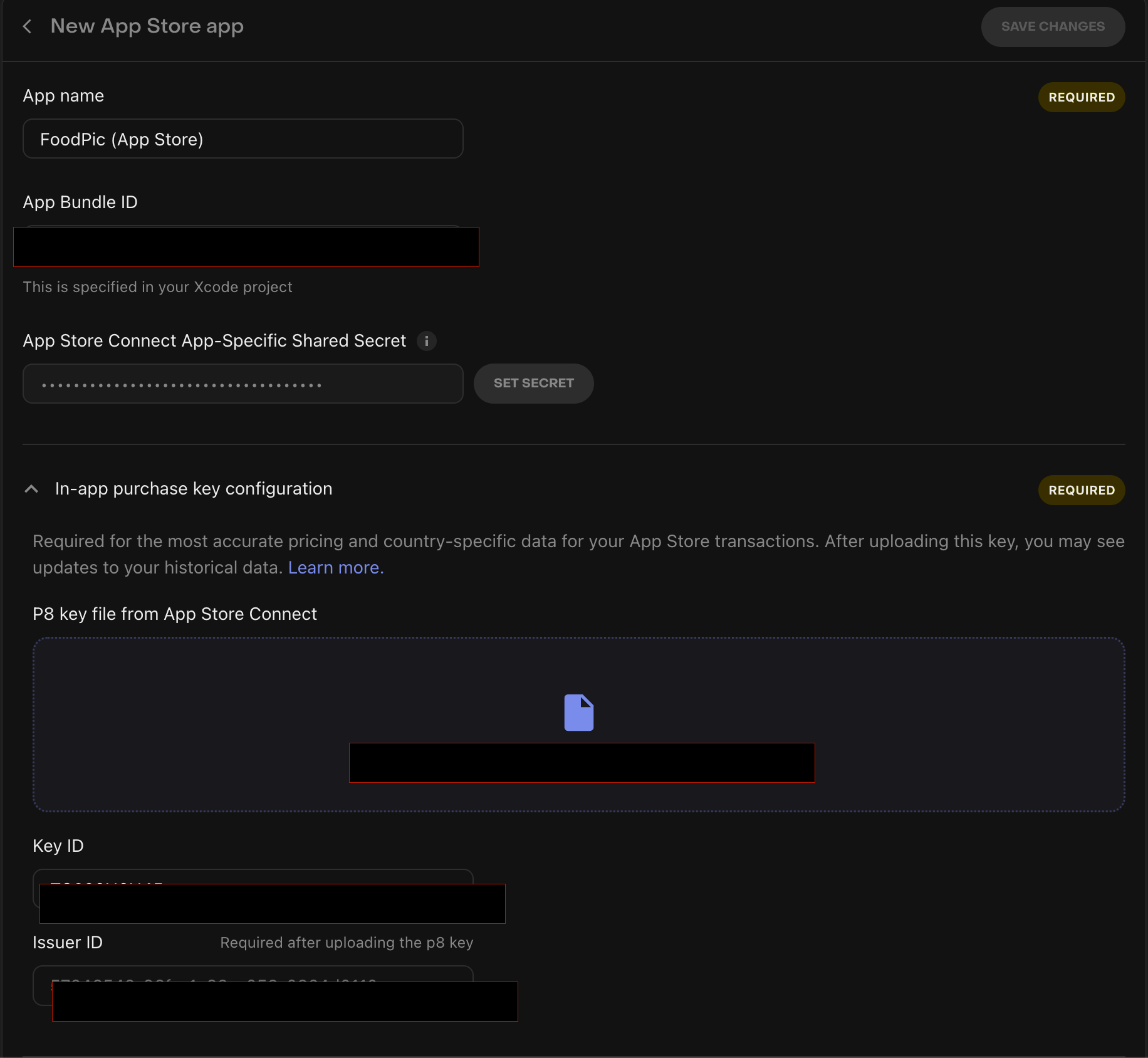
Whenever I enter the required details (Key ID, Issuer ID, and upload the p8 file), I click “Set,” but nothing happens—the fields just reset without any error message or confirmation. Similarly, when I try to upload the p8 file, it doesn’t populate or seem to register.


I’ve double-checked that I’m using the correct key from App Store Connect and ensuring all fields are entered accurately. However, it seems like the data isn’t saving or uploading.


Is this a known bug, or could I be missing something in the setup process?


Thanks in advance for any help!

This post has been closed for comments

8 replies

Forum|alt.badge.img+3
  • RevenueCat Staff
  • January 10, 2025

Hi there, there are two keys that you can upload for your Apple app. 

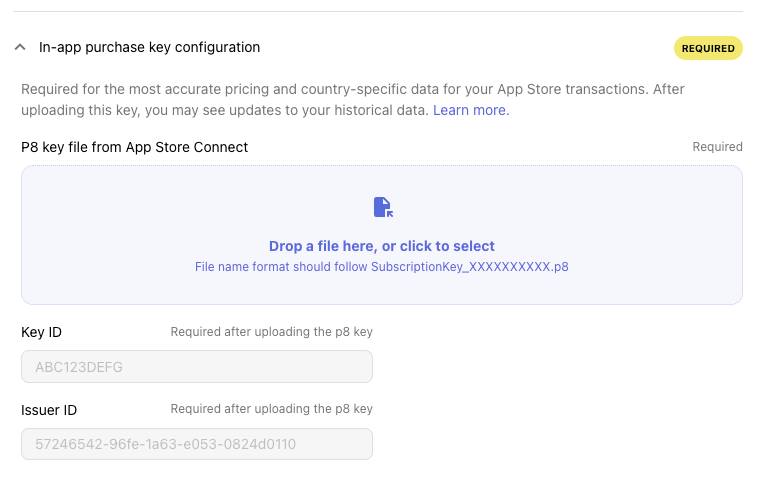
One is the In-App purchase key which is here. 

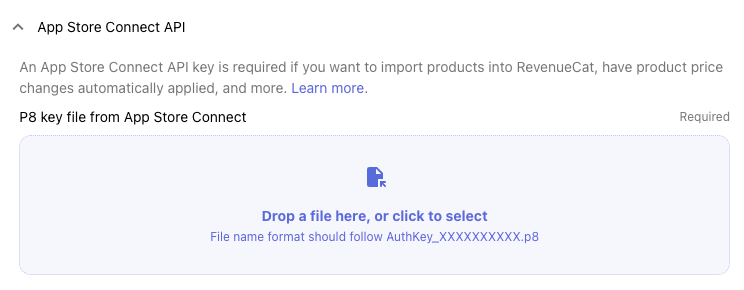
The other key which is the App Store Connect API key which looks like this:


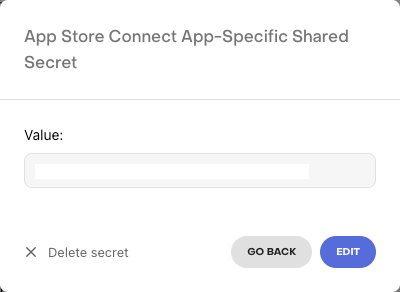
The screenshot you shared is for the App Store Connect App-Specific Shared Secret which is different and is app-specific and found in your App information page. 

Hope this helps!


Forum|alt.badge.img+3
  • RevenueCat Staff
  • January 10, 2025

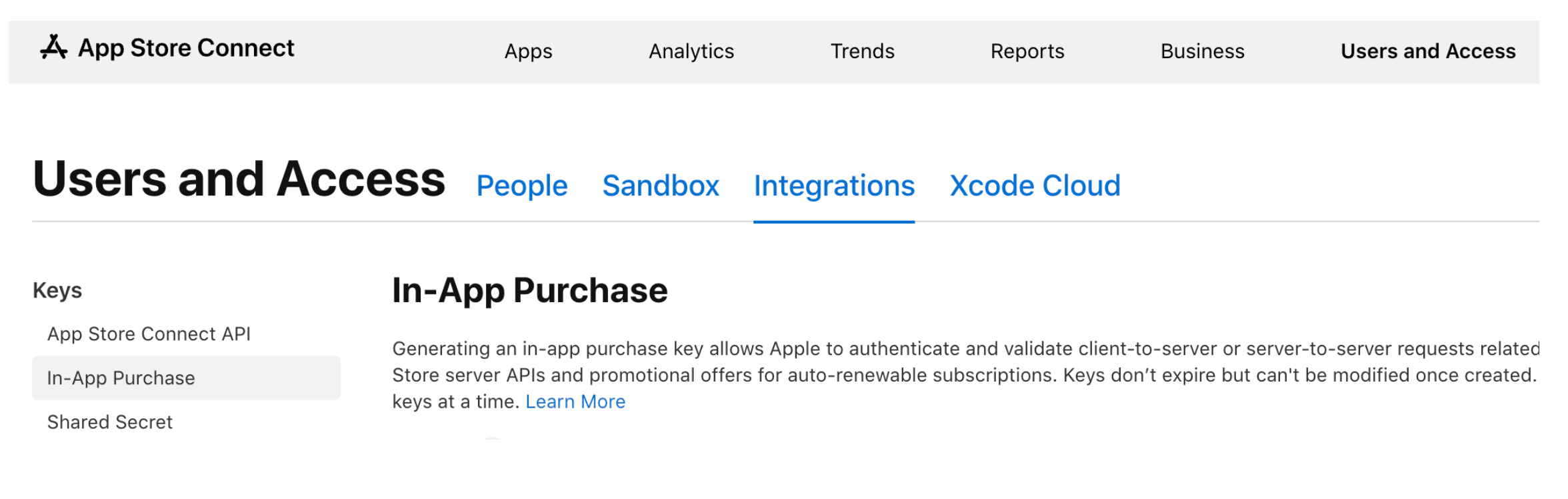
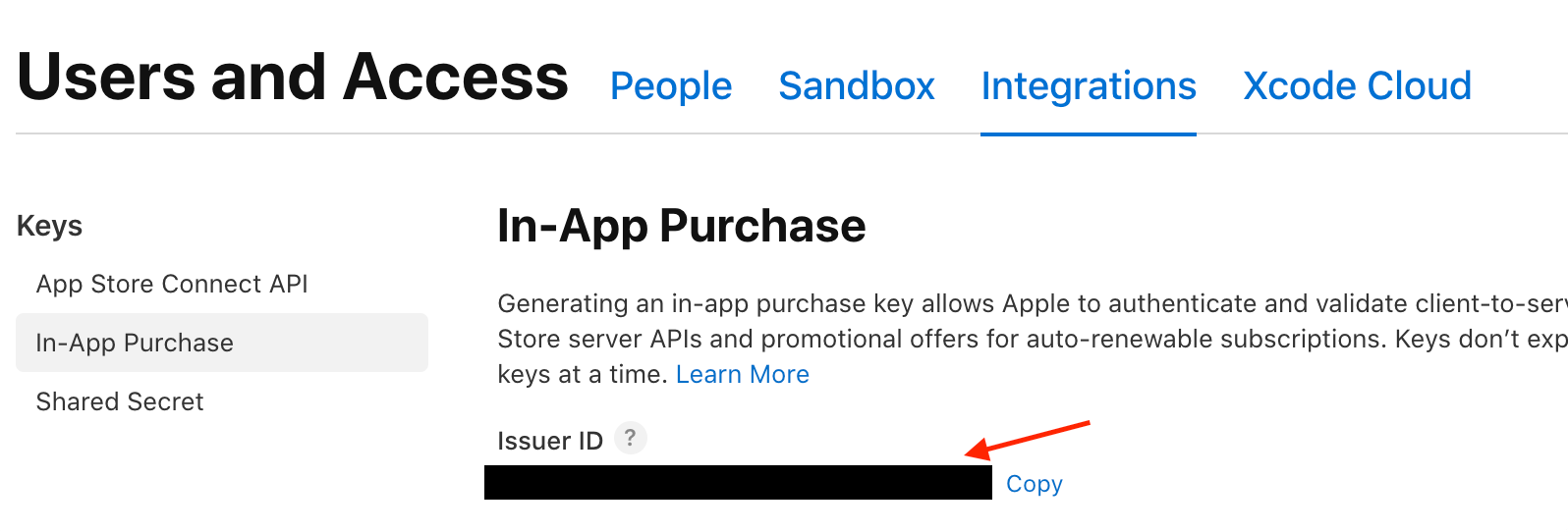
This is the corresponding page on App Store Connect for each of these keys:


Forum|alt.badge.img+1
  • Author
  • New Member
  • January 10, 2025

Thank you Greenie.


When I upload my App Specific Key after following your instruction, I am not getting a screen like this to set it.


Forum|alt.badge.img+3
  • RevenueCat Staff
  • January 10, 2025

You should click Go Back on that dialog. The screenshots I attached are on the same page where you click open that dialog. 


Forum|alt.badge.img+1
  • Author
  • New Member
  • January 10, 2025

HI Greenie,


This is what happens when I put that key in. 

This key is from following the instructions here: https://www.revenuecat.com/docs/service-credentials/itunesconnect-app-specific-shared-secret


Check the video here: https://www.loom.com/share/24f68e910c6c4e8e8223e58231c24a63

FYI I reset the App key after this video


Forum|alt.badge.img+3
  • RevenueCat Staff
  • January 11, 2025

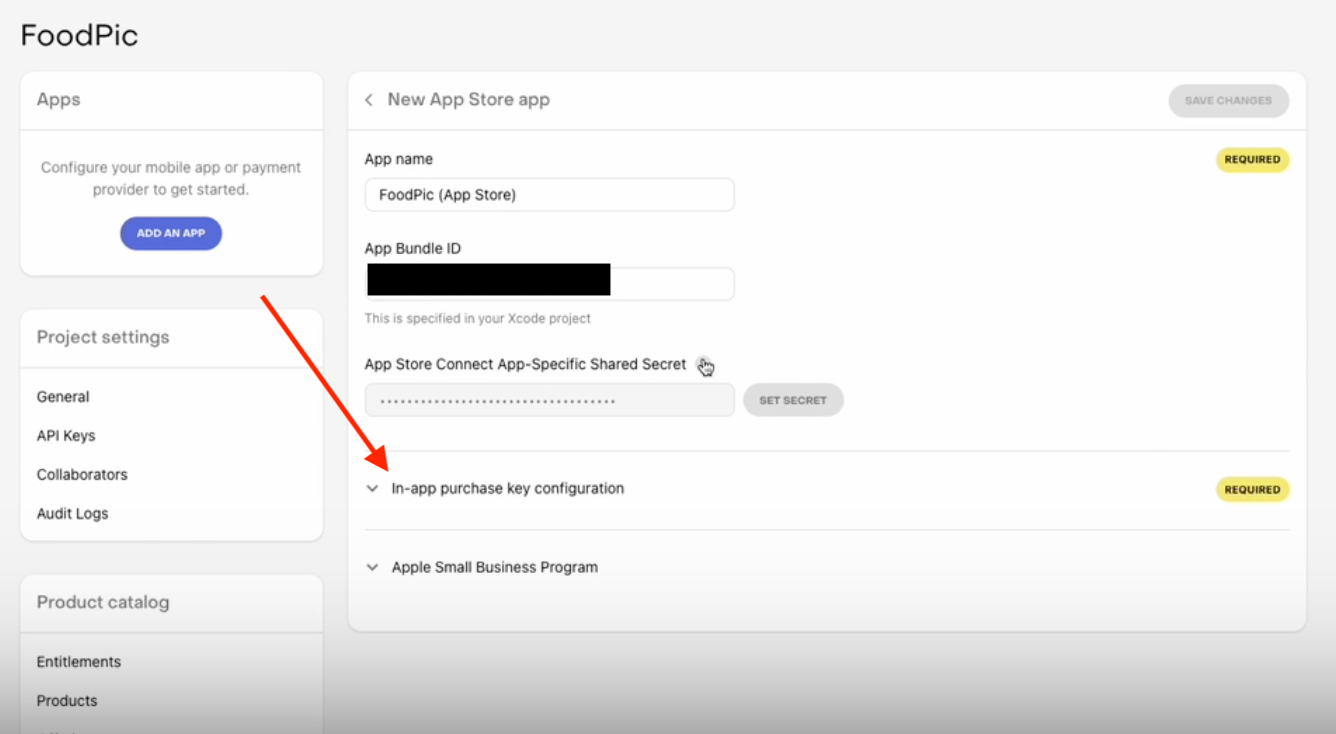
It’s in the collapsed section under the shared secret. See where the red arrow is pointing at: 


Here’s a link to our documentation for instructions: 

https://www.revenuecat.com/docs/service-credentials/itunesconnect-app-specific-shared-secret/in-app-purchase-key-configuration


Forum|alt.badge.img+1
  • Author
  • New Member
  • January 11, 2025

I have that set and still not able to save.


I am still facing issue with setting the App specific key and its not setting when I enter it!


Is there a way I can resolve this via a call?


Forum|alt.badge.img+3
  • RevenueCat Staff
  • January 11, 2025

You need to set the Issuer ID found on your App Store Connect In-App Purchase page. It looks like the covered Issuer ID you have in your screenshot is a placeholder text. You need to enter your own Issuer ID.